How to hide React Components on Dev Extension

Furkan is a software engineer and frontend developer, whose main purpose is to create best optimal experience for user but also keeping the application or project as performant as possible.
He is deeply interested on web technologies and he is building new projects in this subject. He is especially familiar with React, Vue, Node and Java. You can check out what he built on his GitHub account. There is potential ways to connect with him at the end of this summary 👇
Things he like to do; ✔ Trying to solve other people's struggles ✔ Teaching or telling some subject he know to friends or colleagues ✔ Building different kinds of projects ✔ Meeting & talking with new people ✔ Listening podcasts ✔ Playing Chess ✔ Watching drama | sci-fi movies ✔ Listening music while I travelling or trying to fix problems ✔ Researching next generation technologies like cyptocurrency, IoT, smart devices
If you want to reach out with him, here is how you can do it;
🔼 Blog: https://blog.furkanozbek.com/ 🔼 GitHub: https://github.com/afozbek 🔼 Mail: abdullah.furkan.ozbek@gmail.com 🔼 Twitter: https://twitter.com/afozbek_ 🔼 Instagram: https://instagram.com/furkan.codes/
Thanks for reading ✨
Problem
Have you also struggle that when you develop React components at first everything seems ok. You can check out the props or the redux state easily with React extension.
➡️ But once you try to implement third parties you will see that, you can not find the component you are looking for. 90% percent of the components seems not useful for you.
➡️ Actually there is a way to hide them in the React Extension settings.
1 - Open The DevTools
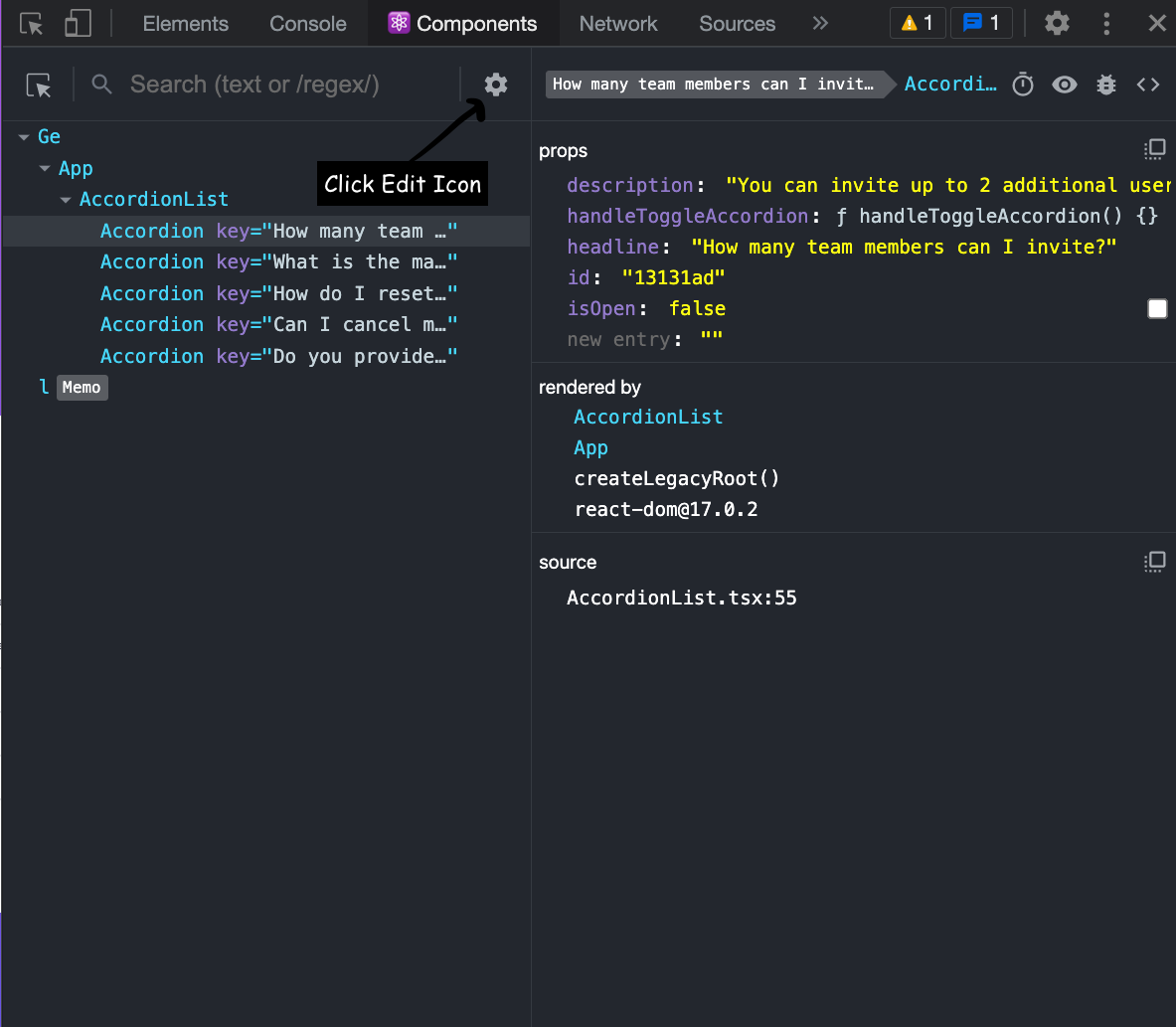
Open your Devtools and go the Components tab in which you can see the React components. And there go to settings which you will choose filters to hide specific components in your application.
2 - Add Filters
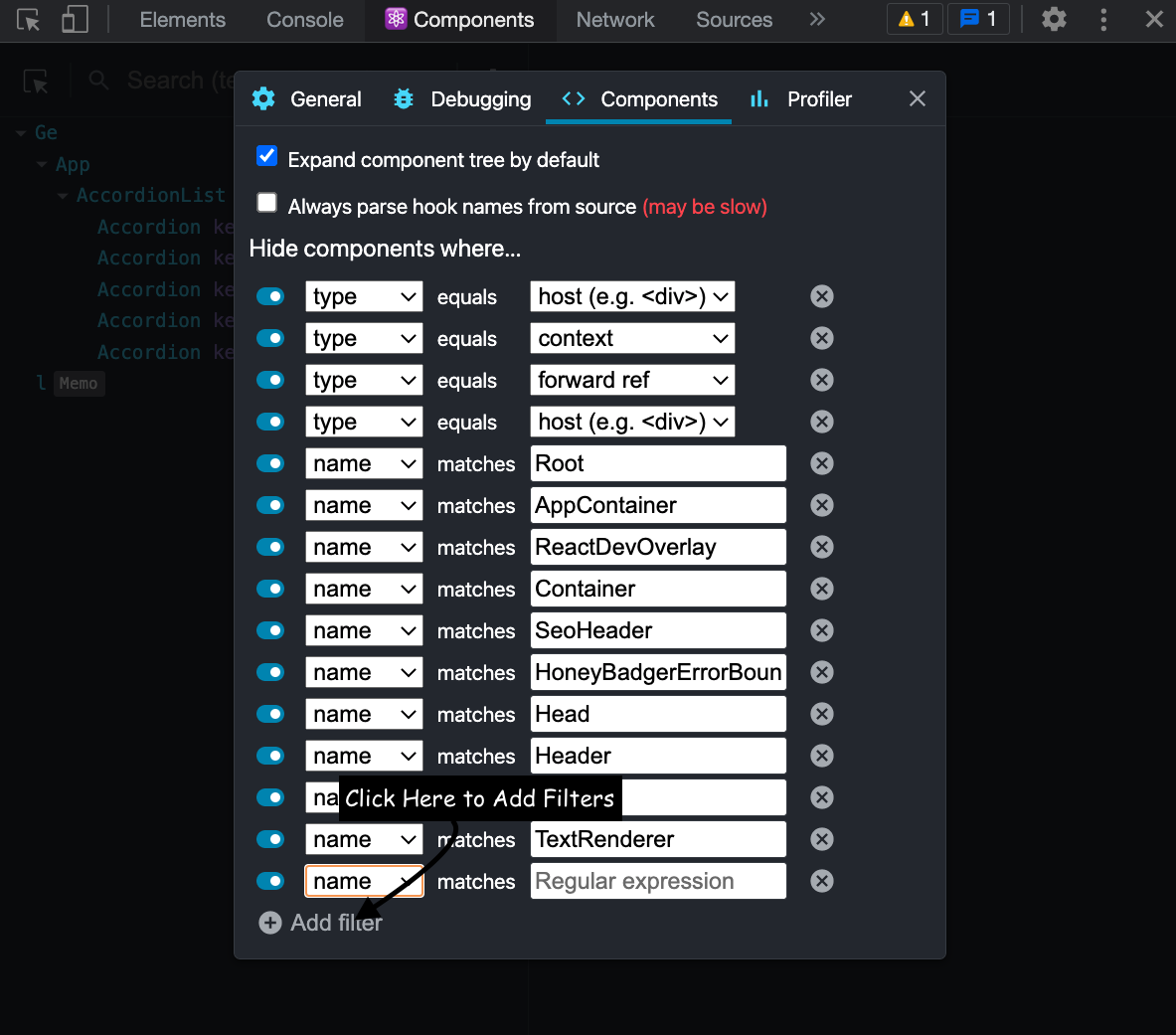
In there you will see an add filter button at the left bottom. Click it and chooses the option you would like.
3 - Enjoy
And there you go. After that you can focus on your development.


